My Money
EN
Download

My Money · daily budget and expense log for iPhoneKnow what you can spend today.

Your monthly budget becomes a daily allowance. Log something and the number updates. Money you don’t spend carries over; overspending comes out of the days that follow.

Plenty of budget apps already. Why this one?

Many budgeting tools are built around monthly reports and categories. My Money answers a more everyday question first: how much can I spend today?

  1. The monthly report arrives after the money’s gone

    One number a day, before you spend

    The home screen shows what you can still spend today. Every entry moves it, so you know what a purchase means before you pay.

  2. Create an account, then link your bank

    Open it and start. No accounts to hand over

    There’s no account system and no bank or card connection. Your ledger lives on your iPhone; the developer has no copy on a server.

  3. Seven taps per entry, gone by Friday

    One line, one screenshot, or a double-tap

    Type a line, say it, pick a few bill screenshots, or double-tap the back of your iPhone after paying. You check what was recognised before it’s saved.

A month of money, one number a day

Set what you want to spend in a month. My Money spreads it over 30 days, and the number in the middle of the ring is what you can spend today.

Every entry moves that number. Money you don’t spend stays with you; anything you overspend is taken back from the days that follow.

Try it with your own numbers
  1. $401
  2. $402
  3. $403
  4. $404
  5. $405
  6. $406
  7. $407
  8. $408
  9. $409
  10. $4010
  11. $4011
  12. $4012
  13. $4013
  14. $4014

$1,200 a month ÷ 30 = $40 a day. Spend exactly that and every day starts at $40.

Example: a $40 daily allowance; on every day not highlighted you spend exactly $40. Same rule as My Money’s budget calculation; amounts are illustrative.

Daily allowance
Your monthly spending money ÷ 30. Or tap “Work it out from income”, enter income, fixed costs, living costs and a savings goal, and pick a plan such as Saver, Balanced or Flexible.
Didn’t spend it all
It carries over. “Left today” builds up to at most five days’ allowance, today included; you can turn rollover off in settings.
Spent too much
The overspend comes out of the following days. With $50 a day, spend $80 today and tomorrow starts at $20.

Log it in seconds

Budgets fail when logging feels like a chore. Every way in is one step shorter, and anything the app recognises is shown to you before it’s saved.

  • Say it, and it’s logged

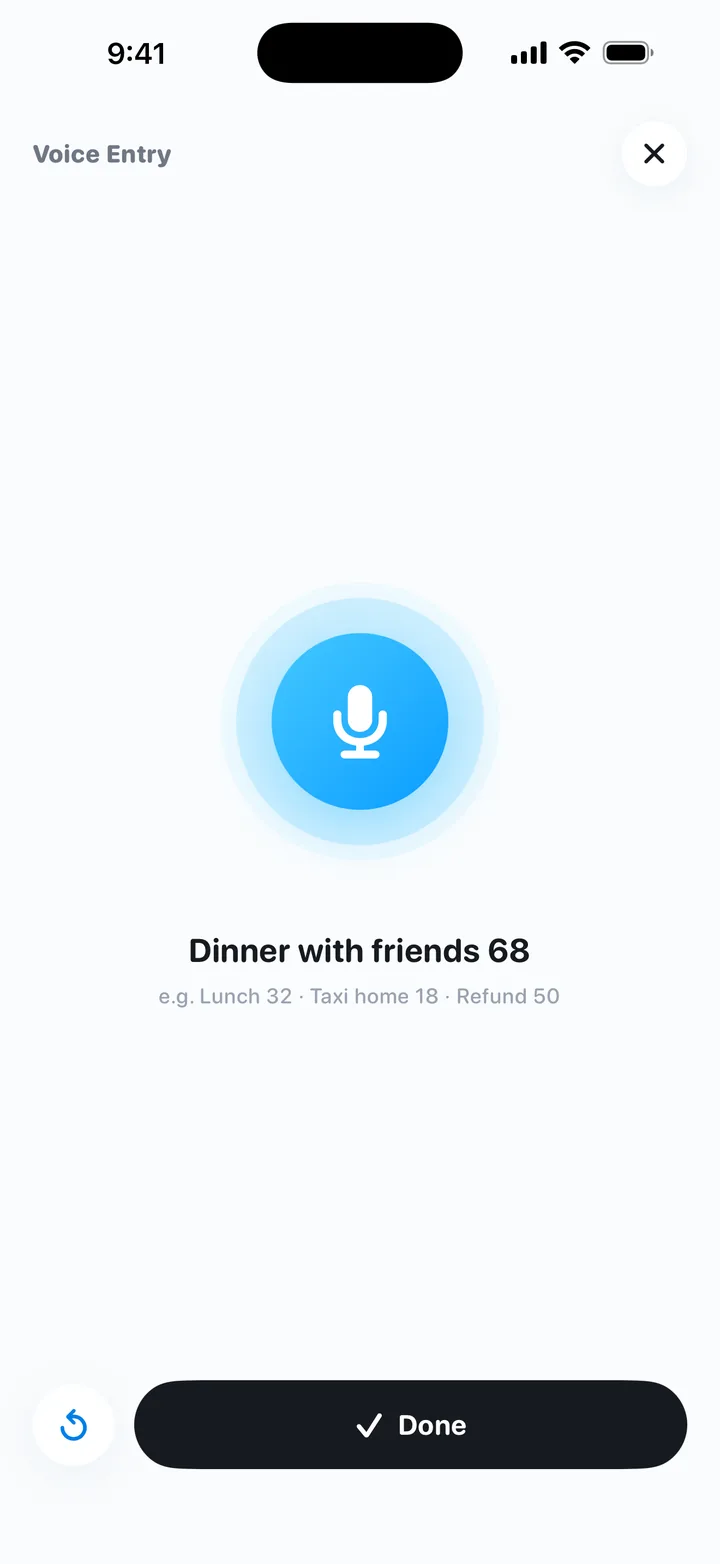
    Tap the mic next to Add and say “Dinner with friends 68”. Amount, category and note fill in; check it and save.

    Speech is recognised on the iPhone; recordings aren’t uploaded. Needs on-device recognition for your language.

    Voice entry: say “Dinner with friends 68” and it becomes a draft
  • One screenshot, several entries

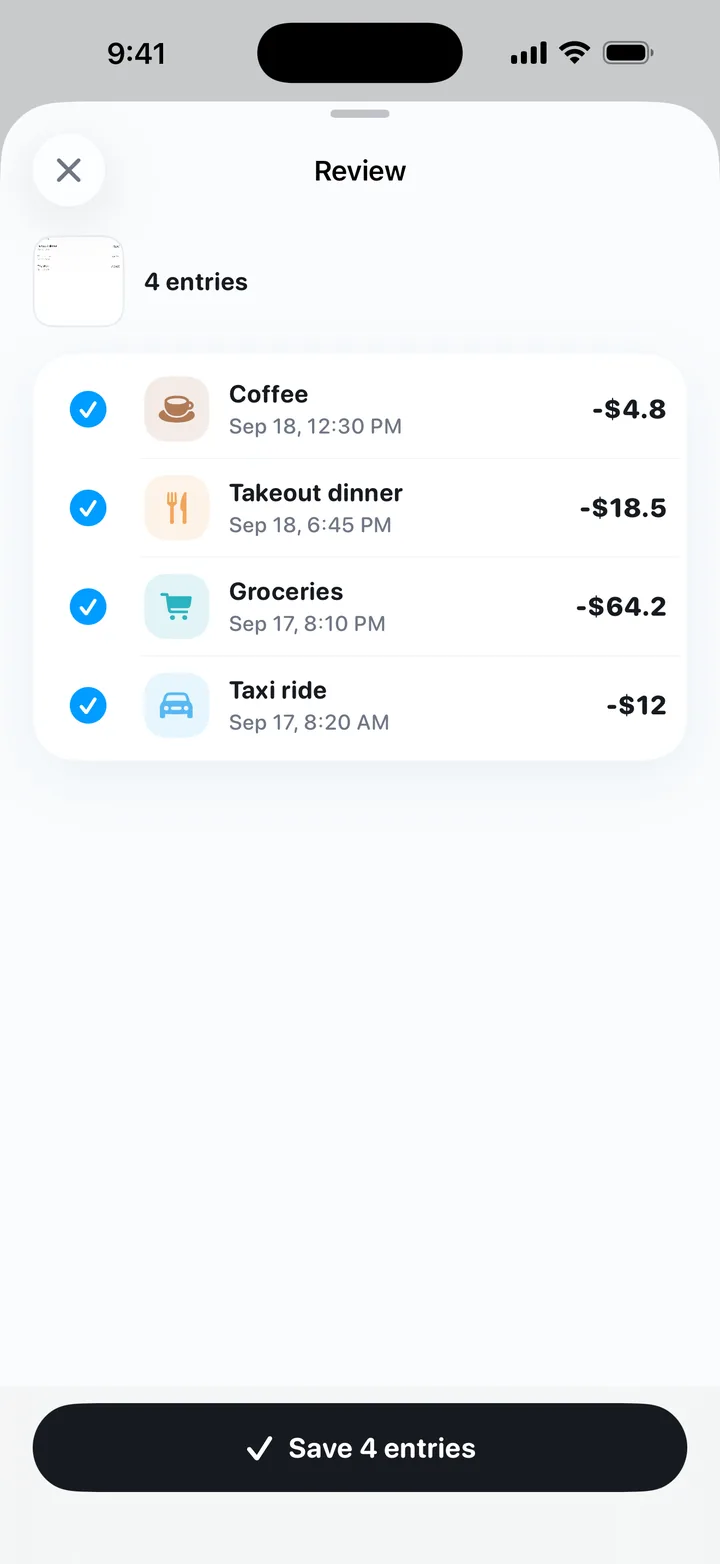
    Pick up to five payment screens, bills or receipts. Each line becomes a draft you can edit or untick; nothing is logged until you tap Save.

    Text is read on the iPhone with Apple Vision; images aren’t uploaded.

    Screenshot entry: one bill screenshot turned into four drafts to review
  • Paid? Double-tap the back of your iPhone

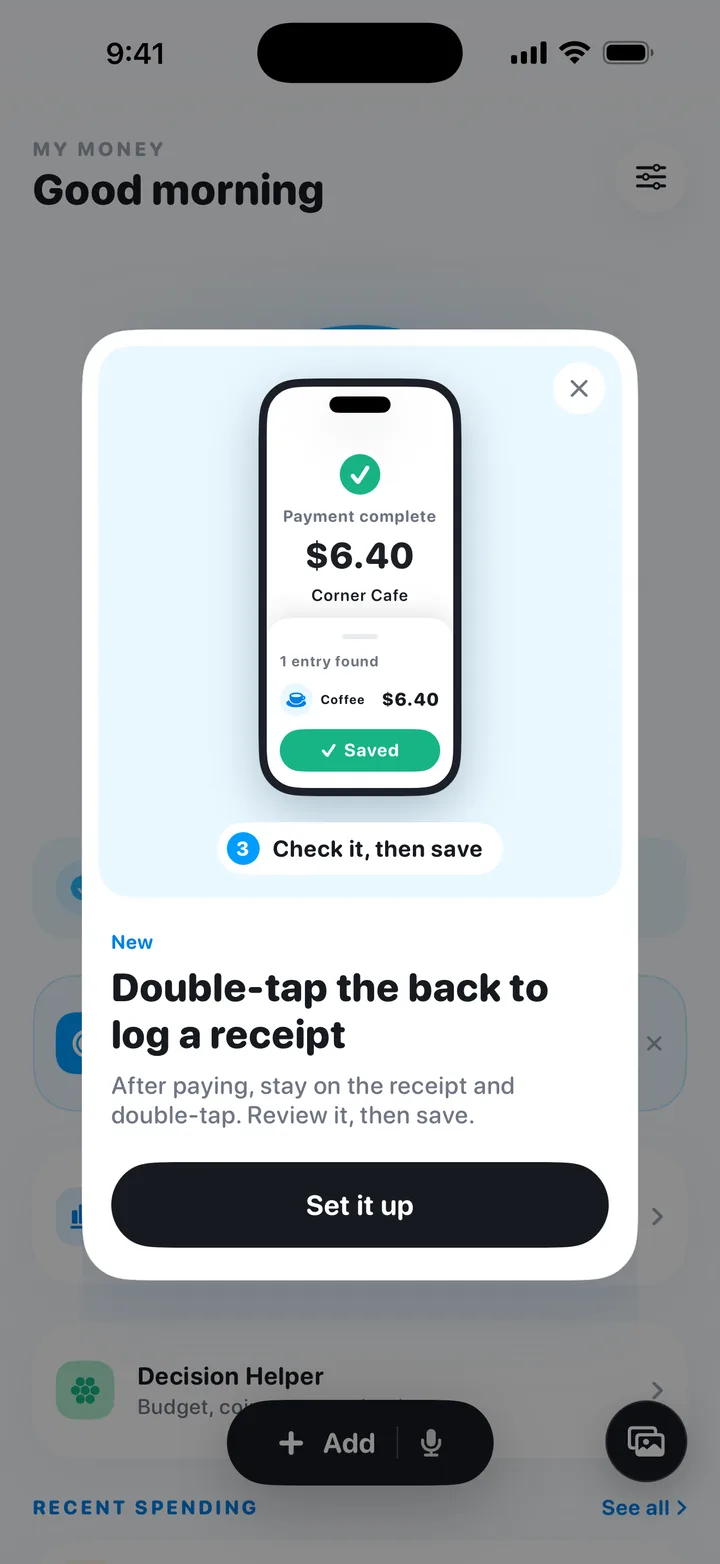
    Add the screenshot shortcut once from My Money’s settings, then choose it in Settings › Accessibility › Touch › Back Tap. From then on, double-tap on the payment screen and it becomes a draft to save.

    On iOS 18 and later you can also run the same shortcut from Control Center.

    Back Tap screenshot entry: a payment screen turned into a draft, ready to save
  • Or just type a line

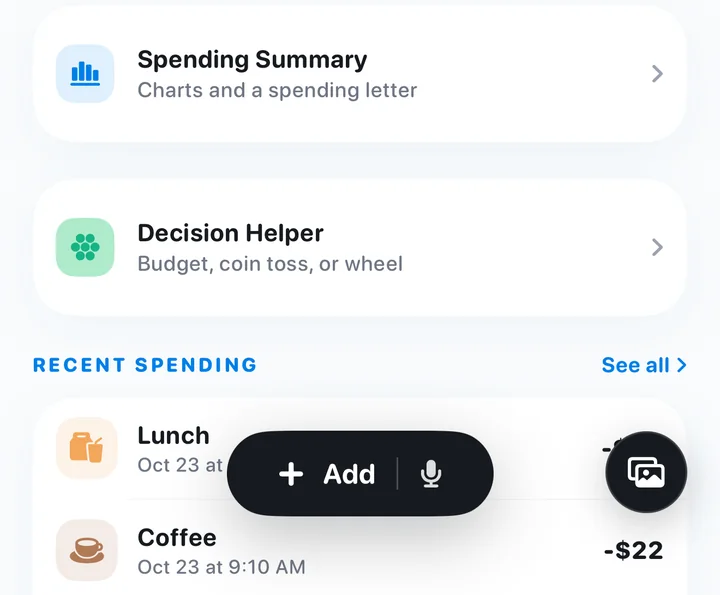
    Type “lunch 12” and the amount and category fill in. It understands “yesterday” too.

    Bottom of the home screen: the Add button and recent spending

See exactly where the money went

Everything you log shows up again here. It only covers what you’ve logged: no bank data, and no financial advice.

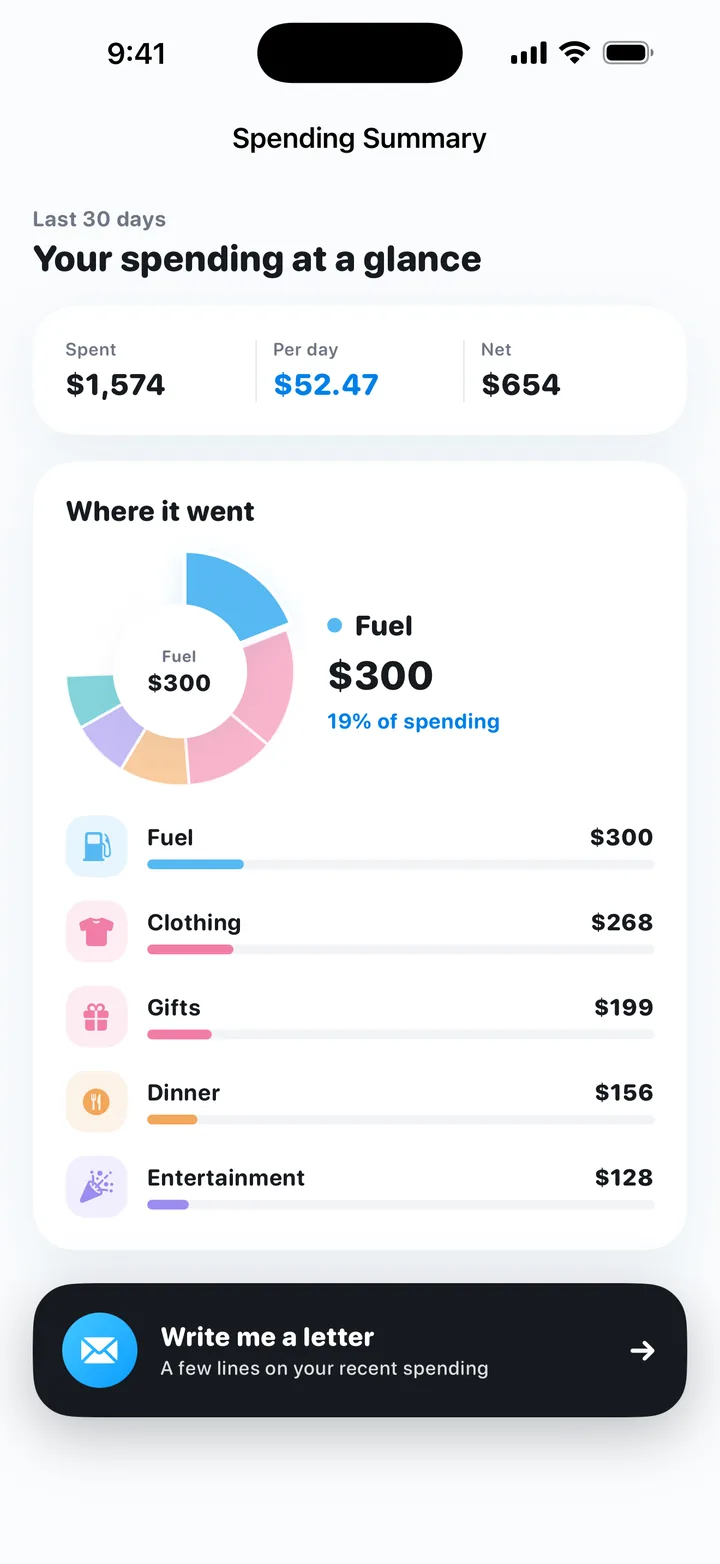
Spending Summary
Total, daily average and category ranking for the last 30 days, this week or this month. Open a category to see every entry in it.
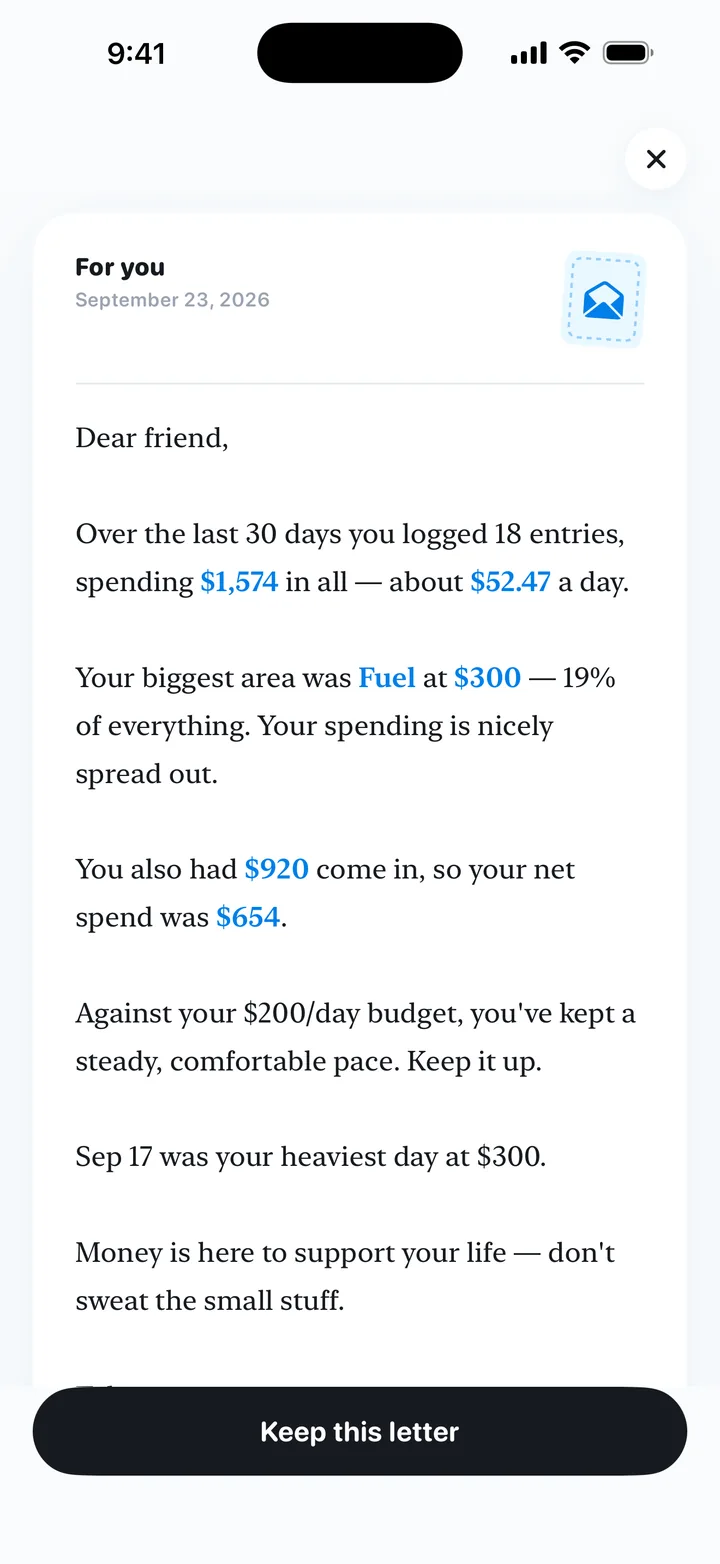
Spending letter
A few lines about your recent spending: the biggest category, the biggest day.
Recaps and calendar
Daily, weekly and monthly recaps against your budget. When there isn’t enough data, it says so.
Widget and logging reminder
Small and medium Home Screen widgets show what’s left today, with the amount hidden if you like. The evening reminder can be Light, Clear, or Over budget only.
Spending summary: last 30 days with total, daily average and a category ring chart
Spending letter: a few lines about the last 30 days of spending

Should I buy it? See the budget impact first

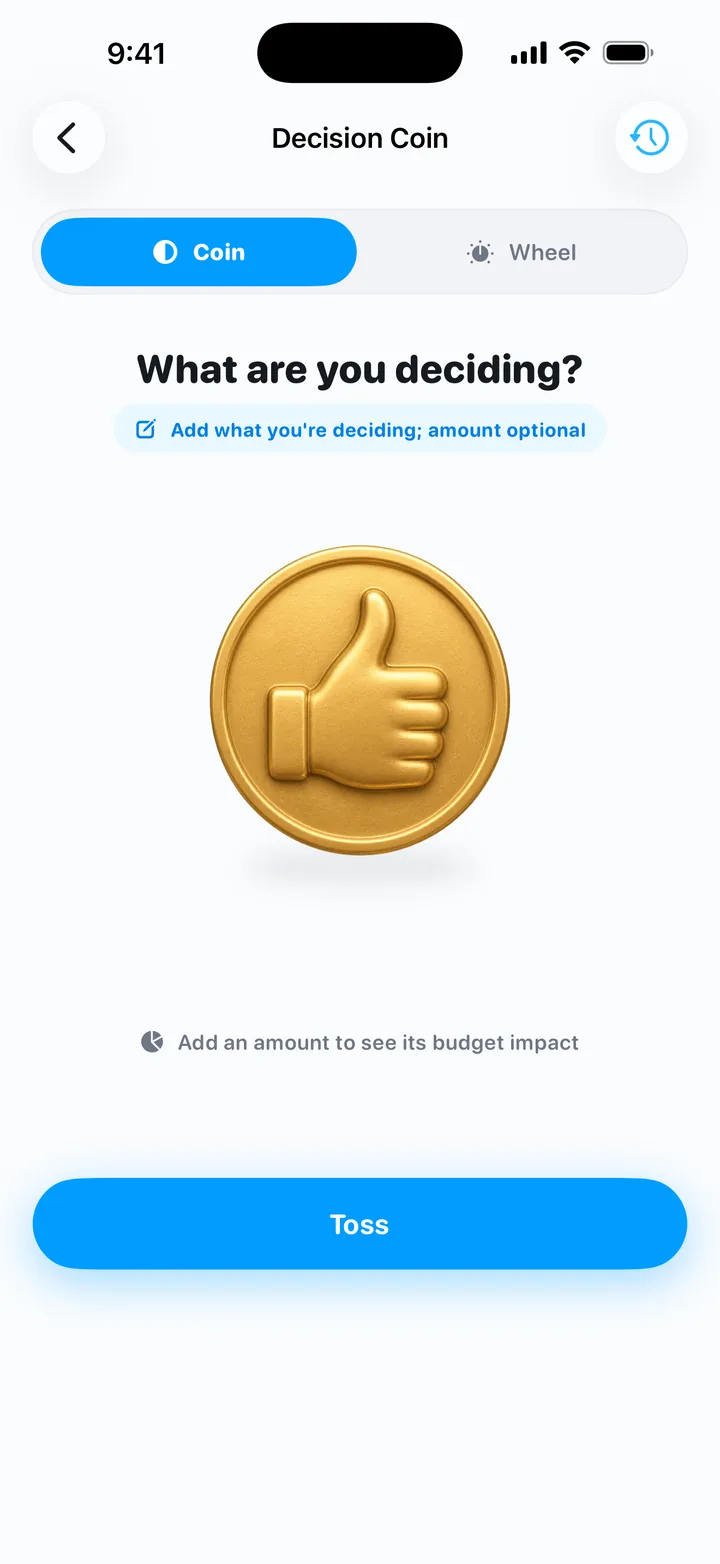
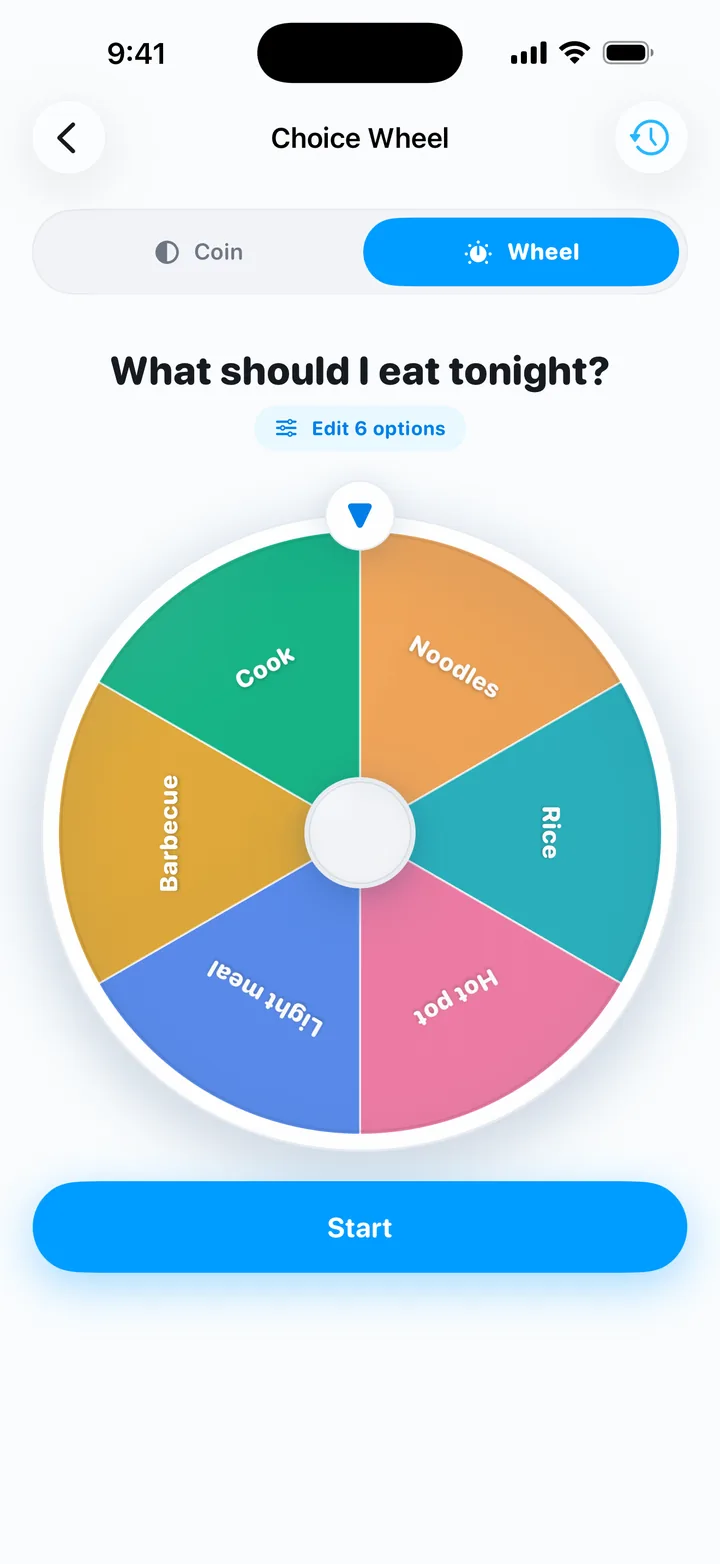
The Decision Coin shows what a purchase would do to what’s left of your budget, then lets you toss. The Choice Wheel settles what to eat tonight. Results are only suggestions; the call is yours.

Decision coin: write down what you’re deciding, see the budget impact, then toss
Choice wheel: what should I eat tonight?

New in 1.0.4

Wishes: cool off before you buy

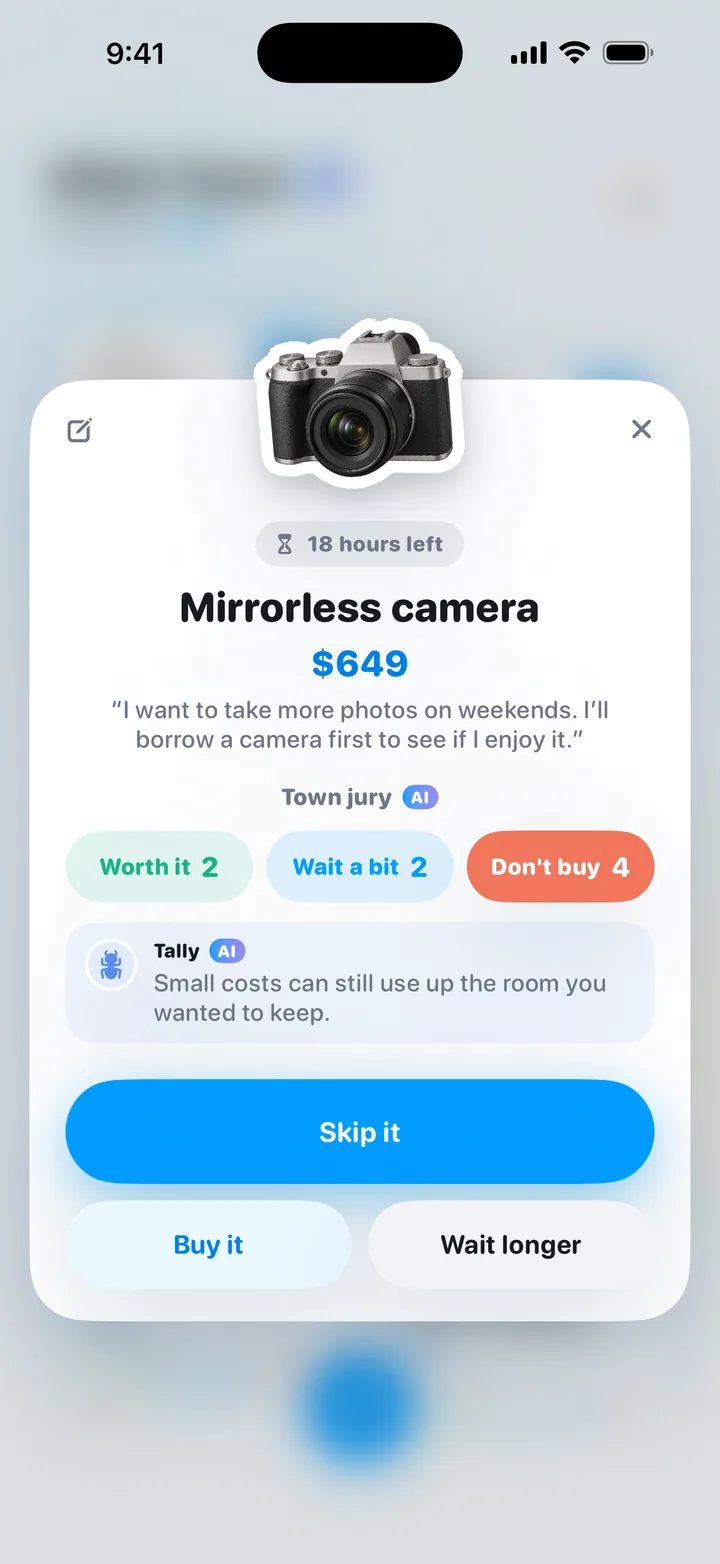
Write down what you want to buy. The price and a reason are optional. Pick a 1-, 7- or 30-day cooling-off period; when it ends, you get a reminder on your iPhone if you’ve allowed notifications. Then choose Skip it, Buy it or Wait longer.

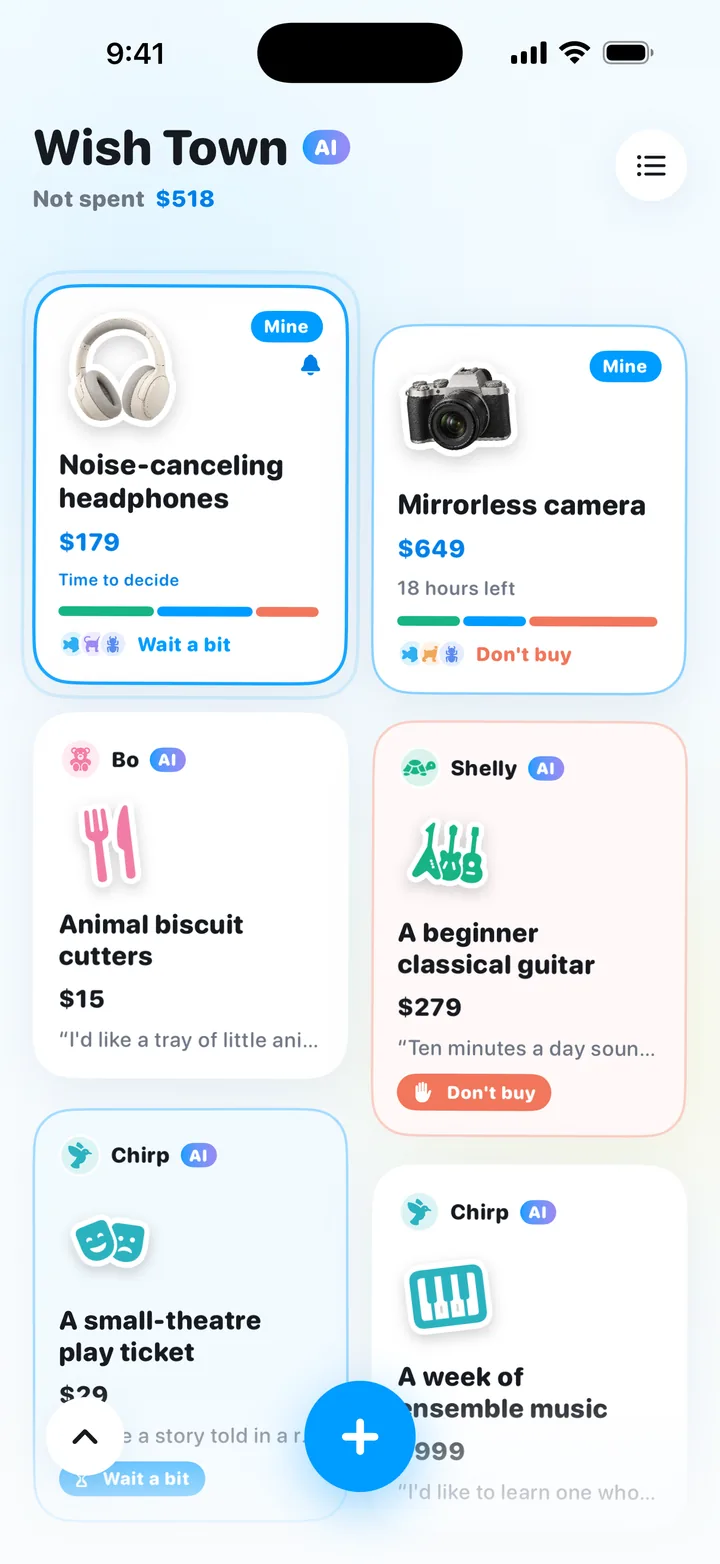
Not spent
Every wish you skip adds its price to Not spent, so you can see what you didn’t spend. It’s a running total, not money moved anywhere.
Wishes don’t touch your budget
Choose Buy it and you can tap Add entry: the name and price are filled in, and nothing is logged until you save it.
Wish stickers
Each wish gets an icon that matches its name. Or add a photo: the item is cut out into a sticker on your iPhone with Apple’s Vision framework. Photos aren’t uploaded.
Wish Town
Eight AI residents, each marked AI, share wishes they’re torn about. Tell them Worth it, Wait a bit or Don’t buy, and each of your wishes gets a Town jury too. The residents are characters built into the app, not real people: their wishes and comments ship with the app and are picked on your iPhone by simple rules. Nothing is generated online or sent anywhere.

Open it with Wishes at the top of Home, or pull down firmly on Home. When the Decision Coin lands on Wait, tap Add to wishes.

A wish cooling off: hours left, the Town jury’s views and the choices Skip it, Buy it and Wait longer
Wish Town in My Money 1.0.4: Not spent at the top, your own wishes marked Mine, and the AI residents’ wishes

Your ledger stays on your iPhone

My Money doesn’t ask you to hand over any account. Every entry, your budget and your recaps are stored on this iPhone.

No sign-up
No account system. No name, phone number or email collected.
No bank linking
No bank or card connection; every entry is logged by you.
On-device storage
No iCloud sync, and no copy of your ledger on the developer’s servers. Wishes, their photos and stickers stay on your iPhone too.
Online AI is off by default
If you turn it on, each feature asks first and sends only the text that request needs; photos, recordings and the full ledger are never uploaded.

Four everyday situations, worked through

Illustrative amounts, same rules as the app: $1,200 a month ÷ 30 = $40 a day, carry-over capped at $200 (five days), overspending taken from the following days.

Broke by the 20th

The month feels rich, then it runs out

A monthly budget shows $1,200 on day one. My Money shows $40, and at most $200 after a quiet week, so an early splurge shows the same day: spend $70 on day 1 and day 2 starts at $10.

  1. Take out rent, bills and savings first; enter the rest as monthly spending money.
  2. Check “Left today” before you pay.
  3. Log it straight away: type “lunch 12” or say it.

Big purchase

A $120 jacket in the middle of the month

Buy it on day 15 with $40 left and you’re $80 over; spend nothing for two days and day 18 is back to $40. Or make room first: spend $20 a day for four days and day 15 starts at $120.

  1. See the budget impact in the Decision Coin first.
  2. To make room, spend less for a few days (carry-over tops out at $200).
  3. Log it when you buy; any overspend comes out of the next days.

Cash & forgotten bits

The taxi you paid in cash

Cash never shows up in a payment app. Type “taxi 15 yesterday” and it’s dated yesterday, so today’s $40 becomes $25. A friend paying you back $20 counts as income and offsets today’s spending.

  1. Type one line; amount, category and date fill in.
  2. For a paper receipt, tap the screenshot button and take a photo.
  3. Log money paid back to you as income.

Weekend

A $70 Saturday on a $40 budget

Saturday ends $30 over, so Sunday starts at $10. Keep Sunday to $10 and Monday is back to $40. Nothing is spread over the month; you see the whole cost at once.

  1. Spend a little under $40 on Thursday and Friday; the rest carries into Saturday.
  2. Log as you go. Past zero, the home screen shows “Over budget by $X today”.
  3. Keep Sunday to what’s left and Monday is back to normal.

How it compares with the budget apps we checked

Not better for everyone, just different. Right column: what we saw most often across 37 budgeting apps on the App Store in October 2026.

ComparedMy MoneyCommon approach in budget apps
Built aroundOne daily number: what’s left to spend todayMonthly budgets, categories or envelopes. A smaller group of apps also shows a daily amount.
PriceFree. No in-app purchases, subscriptions or ads36 of the 37 apps offer in-app purchases, including all six daily-budget apps we found.
AccountNoneCommon, especially in apps that sync or link banks. Several manual and daily-budget apps work without one.
Bank connectionNone. You log each entryCentral to many leading apps in the US and Japan, or a paid upgrade. None of the mainland China apps we checked mention it.
Where data livesOn your iPhone only. No iCloud or cross-device syncCloud sync under an account, or iCloud, is common. A few apps keep data on the device only.
App Store privacy label“Data Not Linked to You” only: Purchases, Financial Info, User ContentMost declare “Data Linked to You” or “Data Used to Track You”. Five declare “Data Not Collected”, which is less than My Money declares.

Choose another app if you want bank imports, sync across devices, a shared family ledger, or a budget that follows your paydays (some daily-budget apps divide by the days until payday; My Money always uses ÷ 30).

How we checked: App Store listings (In-App Purchases, App Privacy, description) and official websites of 37 budgeting apps in the US, mainland China, Japan, Taiwan, Mexico and Spain stores, read on October 25, 2026. Privacy labels are self-reported by developers. A snapshot, not a ranking.

Who it’s for, and who it isn’t

A good fit if you

  • Want to know what you can spend before you pay, not at the end of the month.
  • Live on a set monthly amount: a student allowance, or what’s left after rent and bills.
  • Would rather skip accounts and bank linking, and don’t mind a few seconds per entry.
  • Tend to run out before the month ends and want an earlier warning.
  • Use an iPhone with iOS 17 or later and want something free, with no in-app purchases.

Probably not for you if you

  • Want transactions imported automatically from your bank or cards.
  • Need sync across devices, an iPad or Mac app, or a ledger shared with a partner.
  • Budget by paycheck, or want the budget to reset every month.
  • Spend in several currencies and need exchange-rate conversion.
  • Want investment, debt or tax advice. My Money doesn’t give any.

Start in three steps

  1. Set a monthly budget

    Enter what you want to spend, or tap “Work it out from income” and pick a plan.

  2. Check the number each day

    The number in the middle of the ring is what you can spend today.

  3. Log as you spend

    Type a line, say it, pick a few bill screenshots, or double-tap the back of your iPhone.

The details

Facts last checked:

Price
Free. No in-app purchases, subscriptions or ads.
Device
iPhone, iOS 17 or later.Designed for iPhone only.
App languages
17 interface languages, including English, Simplified and Traditional Chinese, Japanese, Spanish, Portuguese, French, German, Italian, Korean and Russian.As listed under Languages on the App Store. The languages of this website and of the app are separate things.
Account & bank
No sign-up or login. No bank or card linking.
Where data lives
Your ledger stays on your iPhone. No iCloud sync, and no copy on the developer’s servers. You can export entries as a JSON file; the app can’t import them back yet.
Online AI
Optional and off by default. Each feature asks before it sends anything, and only the text or summary that request needs; photos, recordings and your full ledger are never uploaded. Budget maths always runs on the iPhone.
App Privacy label
“Data Not Linked to You”: Purchases, Financial Info, User Content, used for app functionality.Full details in the privacy policy.
Currency
Follows your region; choose from 28 currencies in Settings. Symbols only, no exchange-rate conversion.
What’s new in 1.0.4
October 2026: Wishes with a 1-, 7- or 30-day cooling-off, Not spent, wish stickers and Wish Town. The budget rules didn’t change.
App Store name
My Money: Daily Budget TrackerUS App Store.

Terms used in My Money

The words you’ll see in the app and on this page, defined plainly.

Daily allowance
Your monthly spending money (what’s left after bills and savings) ÷ 30, rounded to a whole unit. It’s the same in every month, February included.
Left today
The big number on the home screen: what you can still spend today. Every entry moves it, and it goes below zero when you overspend.
Rollover
Unspent allowance carries into the following days. To start every day at the same amount, turn off “Rollover unused money” in Budget Settings.
Five-day cap
“Left today” never goes above five days’ allowance, today included. At $40 a day that’s $200, however long you’ve been saving.
Overspend take-back
Whatever you spend beyond “Left today” comes out of the following days in full, not spread over the month. At $50 a day, spend $80 today and tomorrow starts at $20.
“Work it out from income”
A few questions (income, fixed costs, living costs, savings goal) that suggest plans such as Saver, Balanced and Flexible, saving about 30%, 20% or 10% of income. Fixed rules on your iPhone, not AI; change it any time in Settings.
Screenshot entry
Turns up to five payment screens, bills or receipts into draft entries, read on the iPhone with Apple Vision. Nothing is saved until you review the drafts and tap Save.
Back Tap entry
Double-tap the back of your iPhone and the screen you’re on becomes a draft entry. Set it up once from Settings › Screenshot shortcut; see the Back Tap guide.
Spending Summary
Total, daily average, net of income and a category ranking for the last 30 days, this week or this month. “Write me a letter” adds the spending letter: a few lines on recent spending.
Decision Coin
Shows what a purchase would do to what’s left of your budget, then lets you toss: Buy or Wait. It’s a nudge, not advice; the decision is yours.
Cooling-off period
The 1, 7 or 30 days you choose to wait before deciding on a wish. When it ends, My Money reminds you (if notifications are allowed), and you choose Skip it, Buy it or Wait longer.
Not spent
The total price of the wishes you chose to skip. It’s shown in Wish Town and at the top of All wishes; it isn’t savings and doesn’t change your budget.
Wish Town
The Wishes screen in 1.0.4: eight built-in AI characters share wishes and weigh in on yours with a Town jury. Their content ships with the app and is picked on your iPhone; nothing is sent.

FAQ

Is My Money free?

Yes. No in-app purchases, no subscriptions and no ads.

How is the daily amount calculated?

Daily allowance = your monthly spending money ÷ 30, rounded to a whole unit. With “Work it out from income”, it’s (income − fixed costs − living costs − savings) ÷ 30.

Unspent money carries over, up to five days’ allowance on any one day; overspending is taken back from the days that follow.

Can I stop unspent money from carrying over?

Yes. Turn off “Rollover unused money” in Budget Settings and every day starts at the same allowance.

Does it reset every month? Can I budget by payday?

No. There’s no monthly reset, payday or custom cycle. The allowance accrues every day from the day you set your budget, and both savings and overspending carry forward.

Do I need an account or a bank connection?

Neither. My Money has no accounts and doesn’t connect to banks. You log each expense yourself by typing, speaking or picking a few bill screenshots.

Where is my data stored? Is it uploaded?

Your ledger stays on your iPhone. There’s no iCloud sync and no copy on the developer’s servers.

Optional online AI is off by default. If you turn it on, each feature asks first and sends only the text that request needs; photos, recordings and the full ledger are never uploaded.

Can I move my entries to a new iPhone?

Not inside the app yet. You can export your entries as a JSON file from Settings, but there’s no import.

Can I log income?

Yes. Income and refunds offset that day’s spending, and today’s number updates.

Is there an iPad or Mac version?

My Money is designed for iPhone only and needs iOS 17 or later.

What is the Wishes list in My Money?

A place to park things you want to buy. Add a wish, pick a 1-, 7- or 30-day cooling-off period, and decide when it ends: Skip it, Buy it or Wait longer. Skipped wishes add up under Not spent. Wishes never change Left today unless you save the expense yourself.

Are the Wish Town residents real people or AI? Is anything sent?

Neither real people nor live AI. The eight residents are characters built into the app and marked AI; their wishes and comments ship with the app and are picked on your iPhone by fixed rules. Wish Town doesn’t go online and doesn’t use the optional online AI.

Is “Left today” the same as a “safe to spend” amount?

Close. It’s what you can spend today without going over budget: your daily allowance plus carry-over (up to five days’ worth), minus earlier overspending and today’s spending.

Bills and savings aren’t subtracted automatically. Take them out before you enter your monthly spending money, or tap “Work it out from income”.

I live paycheck to paycheck. Can a daily budget help?

It shows the problem earlier. A monthly budget makes the first two weeks feel rich; a daily number shows on the day that a big Saturday leaves less for Sunday.

It won’t follow your payday: My Money has no pay-period cycle and always divides by 30. Out of money before payday? walks through an example.

What happens if I forget to log for a few days?

Your allowance keeps building, but “Left today” stops at five days’ worth. When you remember, add the big items: write “yesterday” in the line or change the date, and today’s number adjusts.

You can’t log future dates. Entries dated before you set up your budget appear in history without changing today’s number.

Can I log an expense without opening the app?

Yes. Quick Log, run from Shortcuts or Siri, saves a line of text straight away and replies with what’s left today. There’s no review step, so check the entry later.

Voice Log (Siri, Shortcuts or the Action Button) and the Back Tap shortcut open the app so you review the draft first.

Are screenshots uploaded when I log from one?

No. The text is read on your iPhone with Apple Vision, and the image stays on your phone.

Only if you turn on optional online AI (off by default) and allow its Screenshot entry permission is the recognised text sent for parsing, never the image.

Which iPhones can use Back Tap?

Apple lists Back Tap for iPhone 8 or later with iOS 14 or later; My Money itself needs iOS 17. Running the same shortcut from Control Center needs iOS 18 or later.

Set it in Settings › Accessibility › Touch › Back Tap (Apple’s article).

How do I see where my money went this month?

Open Spending Summary and pick This month, This week or 30 days. Tap a category to see every entry, sorted by date or amount.

The monthly recap compares last month with your budget. It covers only what you’ve logged.

My Money guides

All guides

See what you can spend today.

Free to download. Set a monthly budget and you’re ready.

Website analytics and privacy

With your permission, Google Analytics processes pages visited, referral sources, device and browser information, approximate location, scrolling and App Store link clicks. It uses analytics cookies to measure visits. Website analytics does not read amounts entered into the budget calculator, and advertising personalization is disabled.

You can decline or change your choice at any time using Analytics preferences in the footer. Declining stops further analytics and clears this website’s analytics cookies. Withdrawing consent does not automatically delete data already sent. Your choice is saved in this browser for 180 days.

These settings apply to aitinyapps.com. Each app’s own privacy policy explains how it handles app data.

How Google uses website visitor data · Contact

Current choice: not yet decided