


 Scan with your iPhone camera
Opens the App Store page. On a phone, just tap the button.
SnapTidy · photo swipe cleaner for iPhone and iPadSwipe.Keep.Tidy.
One small batch at a time. Swipe right to keep, left to mark. Swiping never deletes anything; photos are only deleted after you’ve reviewed the batch and confirmed.





Never face your whole library at once.
Cleanup stalls when the first screen shows ten thousand photos. SnapTidy only ever hands you a small batch.
- 12
photos in your first batch
It doesn’t count toward the free limit. After that, batches of 40 by default, or 20 or 60.
- 40
free decisions a day
Keep, mark and favourite share one allowance, in the app and in the widget.
- 200
of your choices, then AI pre-sorts
It learns your taste on the device and only suggests. It never deletes on its own.
- 0
photos pre-selected
Screenshots, large videos, similar shots: nothing is ticked for you. You decide on each one.
Why photo cleanups stall, and what SnapTidy does about it
Four things people say before giving up, and the design choice behind each answer.
Thousands of photos, and I don’t know where to start.
Small batches, each with a finish line
You never face the whole library: one batch at a time, 40 photos by default (or 20 or 60), from today or the busiest day in the calendar. When it’s done, you can stop.
What if I delete a photo I’ll want later?
A swipe only marks; deleting needs your confirmation
A left swipe only adds a photo to your To clear list. Nothing is deleted until you review it, confirm in SnapTidy and approve the iOS prompt, and photos then wait in Recently Deleted for 30 days.
I deleted hundreds of photos and my storage barely moved.
Storage figures are only ever estimates
Deleted photos go to Recently Deleted first, so a big cleanup can look like nothing changed. Any storage figure SnapTidy shows is an estimate for after it’s emptied.
I don’t want an app deciding what to delete.
Suggestions only, with nothing pre-selected
Quick Cleanup starts with nothing selected, and Smart Pick only suggests a keeper. AI pre-sort waits for 200 of your own choices, never suggests photos with people or pets for cleanup and never deletes.
One gesture, one decision
SnapTidy hands you a small batch at a time: 40 photos by default, or 20 or 60 if you change it in Settings. Look at one, decide on one, and never face the whole library at once.
Start with today’s batch, or pick the day with the most photos from the calendar. Your very first batch has at most 12.
- Swipe right
- Keep it.
- Swipe left
- Mark it to clean up. It’s only a mark; nothing is deleted.
- Double-tap
- Add it to Favorites, synced with Favorites in Photos.
- Undo
- Changed your mind? Undo the last photo.
Review this batch
6 left in this batch
Drag the top photo, or use the ← → keys. In review, tap a thumbnail to keep it after all. Web demo only; it never reads your photos.
There’s always a confirmation before anything is deleted
The fear with photo cleanup is deleting the wrong thing. SnapTidy splits deletion into steps, and you can stop at any of them.
Mark
A left swipe only puts the photo in your To clear list. Nothing changes in your library.
Review
When the batch is done, look through the list again. Long-press a thumbnail to keep it after all.
Confirm
Confirm in SnapTidy and iOS shows its own delete prompt. Tap Cancel and nothing is deleted.
Recently Deleted
Photos move to Recently Deleted in the Photos app, where you can recover them for 30 days.
With iCloud Photos on, deletions apply to every device that uses the same library. Once you delete from Recently Deleted, or after 30 days, photos can’t be recovered, and SnapTidy can’t recover them either.
Start with the easy calls
When there are too many photos to know where to begin, start with the ones that are quickest to decide on.
-
Quick cleanup
Screenshots, Large Videos and Similar Photos each get their own batch. In Similar Photos, Smart Pick suggests one to keep and leaves the rest to you; nothing is selected by default.
 To delete
-
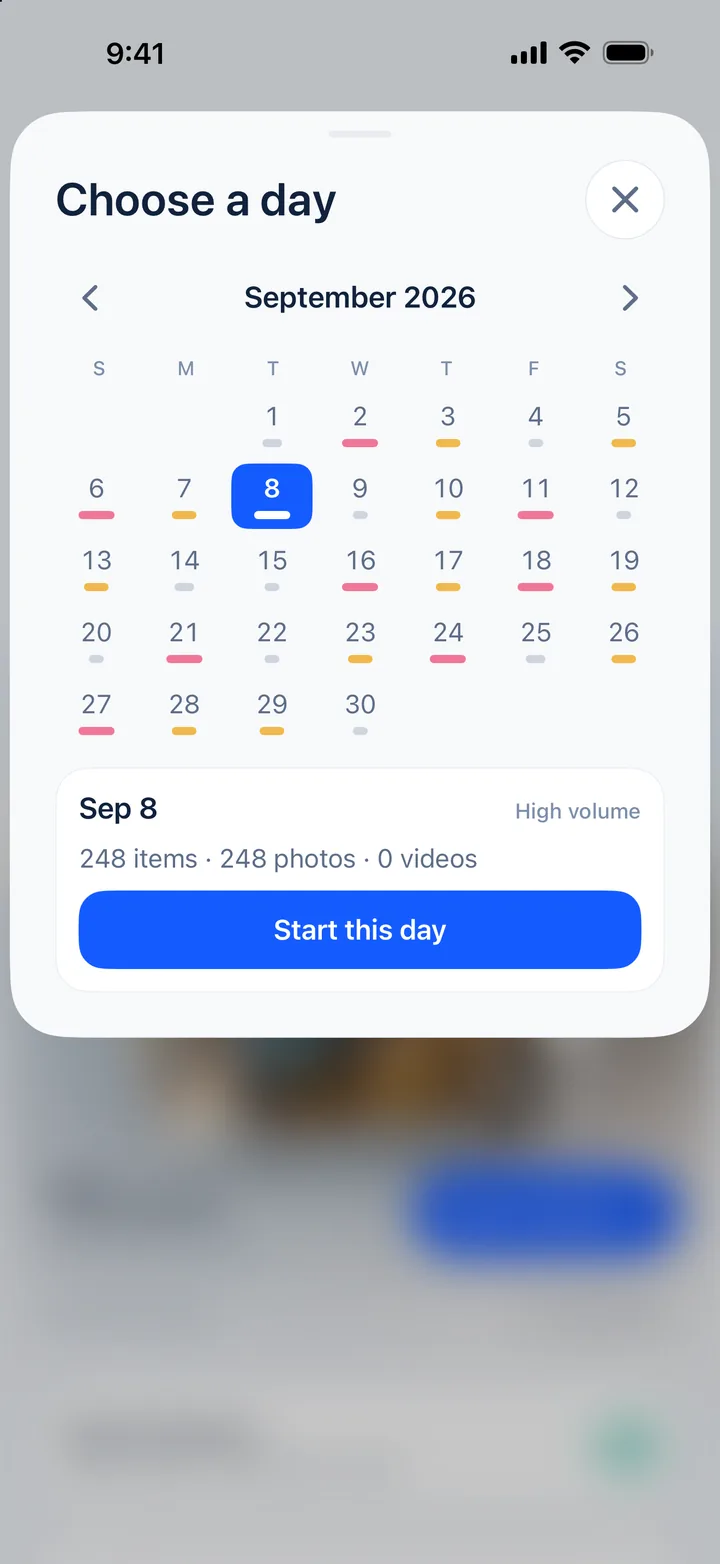
Calendar
See how many photos you took each day, and start with the busiest ones.
-
AI pre-sort
After 200 choices of your own, on-device AI does a first pass in your style for you to review. Photos with people or pets are never suggested for cleanup; screenshots with receipts, addresses or phone numbers are kept. The AI never deletes anything on its own.

-
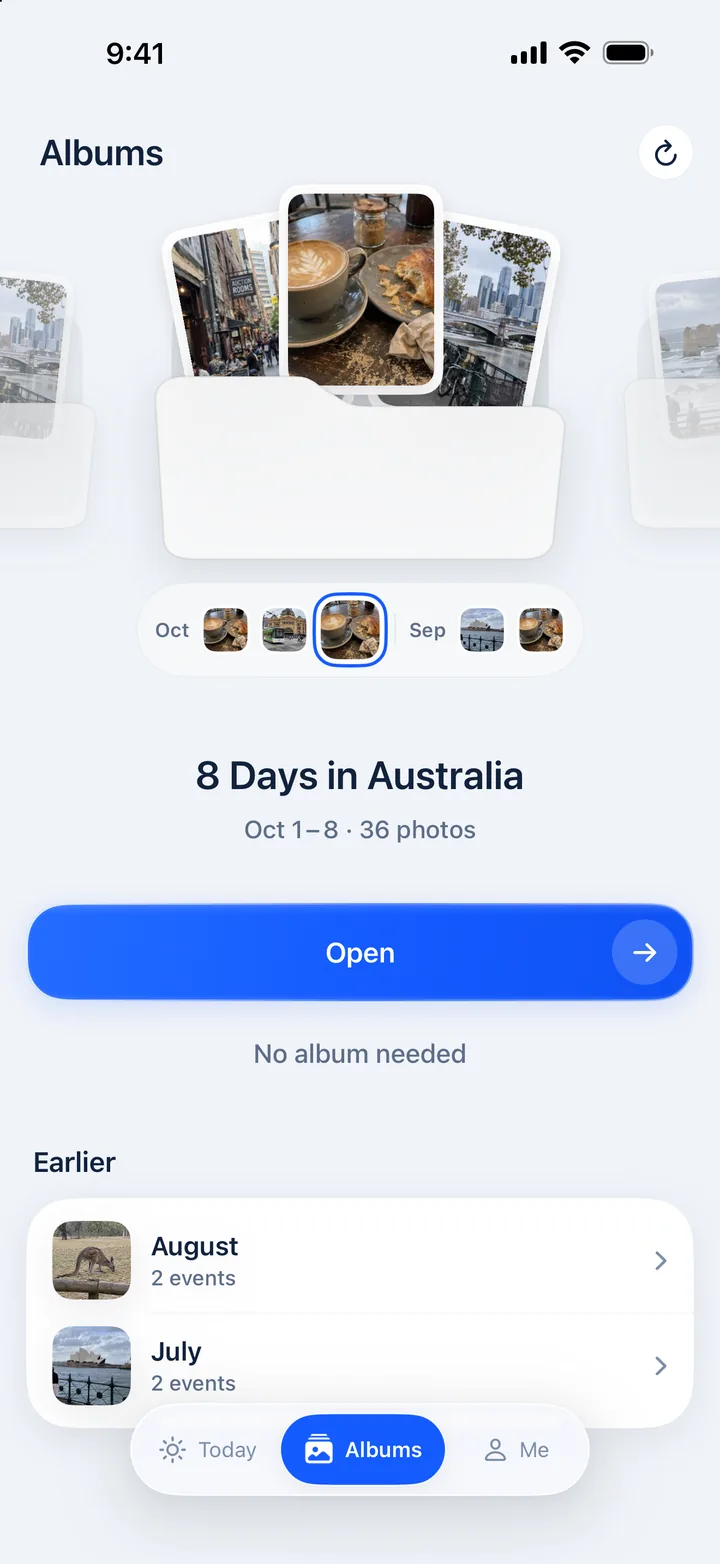
Album sorting
Recent photos are grouped by trip city, busy days and month, then sorted into a few albums by what’s in them. Rename, add albums and drag photos around, then save to the Photos app when you’re happy. Sorting and place names run on device, even offline.
-
Home Screen widget
Keep, mark or favourite a photo without opening the app; deleting still happens in the app. The Lock Screen widget shows your streak and today’s progress.
-
Travel cleanup (offline)
Before a trip, download a batch from iCloud over Wi-Fi so you can sort on the plane with no connection.


-
Cleanup report
See how many photos you’ve sorted and how many you kept or marked. Any storage figure is an estimate for after Recently Deleted is emptied.
KeepTo cleanLoved
Four situations, step by step
Where to start for the cleanups people put off most.
-
After a trip
Hundreds of photos from one trip
Trips leave long runs of near-identical shots. Start with the busiest day, keep the best of each run, then let the Albums tab group the rest.
- On the Today tab, tap Open calendar, choose the busiest day and tap Start this day.
- In Quick Cleanup › Similar Photos, check Smart Pick’s suggestion for each group.
- In Albums, adjust the trip albums and tap Save as album (free: 2 album sets in total).
-
Screenshots
A camera roll full of screenshots
Screenshots are quick calls, but ones with receipts, addresses or phone numbers deserve a second look. Quick Cleanup lists them with nothing selected.
- On the Today tab, open Quick Cleanup › Screenshots.
- Select the ones you’re done with and add them to the cleanup batch.
- Review This batch, confirm, then approve the iOS prompt.
-
Daily
One small batch a day
A short daily batch is easier to keep up than a whole afternoon.
- In Settings, set Photos per task to 20.
- Add the Quick Tidy widget to your Home Screen to keep or mark photos; deleting still happens in the app.
- Add a Lock Screen widget to see your streak and today’s progress.
-
Offline
Sorting on a plane
Photos stored only in iCloud must be downloaded by iOS first, so pack a batch on Wi-Fi.
- On Wi-Fi, open Travel cleanup on the Today tab.
- Choose your flight duration and tap Start packing.
- Swipe offline, then review your To clear list as usual.
How SnapTidy compares with common photo cleaner apps
Only points we could check, including where SnapTidy is no different.
| Compared | SnapTidy | Common approach in photo cleaner apps |
|---|---|---|
| How photos are grouped | By count: batches of 20, 40 or 60, or one day from the calendar. | Swipe apps we checked group by month, at random or “on this day”; none described fixed-size batches. |
| Cleanup lists | Nothing pre-selected; Smart Pick only suggests a keeper. | Often pitched as “mark the best, delete the rest in one tap” or automatic bulk cleanup (defaults not tested). |
| How the AI decides | Learns from 200 of your choices; people and pets stay out of suggestions; never deletes. | Finds duplicates or blurry shots and marks a “best” one; none described learning from your choices. |
| App Privacy label | Data Not Collected. | None of the 10 photo cleaner apps we checked on the US App Store. |
| Plans | Monthly, yearly or a one-time Lifetime Pass; no weekly plan. | Weekly plans visible for 14 of the 30 apps. |
| Storage claims | No GB promise; in-app figures are estimates. | At least 7 descriptions promise to clear “several GB”, or gigabytes in seconds. |
| Mark first, review, on device | Yes. | Also common: many swipe apps mark first, and at least 12 of the 30 say they work on device. |
Another tool fits better for merging exact duplicates (the Duplicates album in Photos), compressing videos, cleaning up contacts, clearing thousands of photos in one tap or moving your library to cloud backup.
How we checked: on Oct 25, 2026 we read the App Store pages (description, in-app purchases, privacy label) and help pages of 30 iOS photo cleanup apps in six storefronts: US, mainland China, Japan, Taiwan, Mexico, Spain. The privacy row covers the 10 US apps; two China-store apps do show Data Not Collected. We didn’t install the apps; purchase lists are partial, labels are self-reported and listings change.
Who SnapTidy is for, and who it isn’t
A good fit if
- You’d rather clean up a little at a time than in one long session.
- You want to decide on each photo, with a review before anything is deleted.
- Your camera roll is heavy on screenshots, trip photos or near-identical shots.
- You want photos processed on the device, with no account and no ads.
- You use iOS 18 or later on iPhone, or iPadOS 18 or later on iPad.
Not the right tool if
- You need exact duplicates merged. Use the Duplicates album in Photos.
- You want thousands of photos cleared in one tap. SnapTidy always asks you to review and confirm.
- You need photos back that were removed from Recently Deleted. SnapTidy can’t recover photos.
- You want video compression, contact cleanup or cache cleaning.
- Your sorting history must follow you to another device. It stays on this one.
Getting started
Allow photo access
Full or limited access both work. Photos are processed on the device and never uploaded.
Swipe your first batch
It has at most 12 photos and doesn’t count toward the daily free limit.
Review, then delete
Check your To clear list, confirm, and iOS moves the photos to Recently Deleted.
Pricing & details
Facts last checked:
Free
$0
- 40 free decisions a day, shared by keep, mark and favourite, in the app and the widget
- Your first batch and the AI learning batch don’t count
- Quick cleanup, AI pre-sort and album sorting included
- Save up to 2 album sets to the Photos app (in total)
SnapTidy Pro
- Monthly
- $4.99 / month
- Yearly
- $19.99 / year
- Lifetime Pass
- $39.99 once
- No daily limit
- Save as many album sets as you like
- The Lifetime Pass is a one-time purchase with no renewal
- Manage or cancel subscriptions in Settings > [your name] > Subscriptions
- Price
- Free download with in-app purchases (SnapTidy Pro).Pro prices as shown on the US App Store on Oct 25, 2026. The App Store shows the current price for your region.
- Devices
- iPhone with iOS 18 or later; iPad with iPadOS 18 or later.
- App languages
- English, Simplified Chinese, Traditional Chinese, Japanese, Spanish, German, French, Portuguese (Brazil).The languages of this website and of the app are separate things.
- Account
- None needed. Your sorting history stays on this device and doesn’t sync between devices.
- Privacy
- Photos, recognised text and AI results are processed on the device and never uploaded. No ads, no third-party tracking. App Privacy label: Data Not Collected.See the privacy policy.
- Network
- Sorting works offline. Photos stored only in iCloud are downloaded by iOS.
- Limits
- No exact-duplicate detection. AI pre-sort starts after 200 of your choices and can be wrong, so check before deleting. Album sorting covers recent months; photos without location can’t be grouped by city.
- App Store name
- SnapTidy: Photo Swipe & DeleteUS App Store.
- Support
- SnapTidy website · snaptidyapp@outlook.com
Terms used on this page
Short definitions of the words SnapTidy and the Photos app use.
- Batch
- A batch is the set of photos SnapTidy shows you at one time: 40 by default, or 20 or 60 under Photos per task in Settings.
- To clear list
- To clear is the list where photos you swipe left (mark for cleanup) wait until you confirm deletion. Long-press a thumbnail there to keep it after all.
- Recently Deleted
- Recently Deleted is the Photos app album where deleted photos and videos stay for 30 days before being permanently deleted. It’s part of iOS, not SnapTidy.
- Similar Photos
- Similar Photos groups near-identical shots taken a short time apart, Live Photos included. It isn’t exact-duplicate detection; for copies, use the Duplicates album in Photos.
- Smart Pick
- Smart Pick is the button in Similar Photos that suggests one shot to keep (Suggested keep) and the rest for cleanup; change it before you confirm.
- AI pre-sort (AI Pre-screen)
- AI pre-sort is SnapTidy’s on-device first pass that sorts photos into suggested keeps and cleanups for you to review. It starts after 200 of your choices and never deletes anything.
- Free decisions
- A decision is one keep, mark or favourite; the free version includes 40 a day, shared by the app and the widget. Undo gives one back; Pro has no daily limit.
- Lifetime Pass
- The Lifetime Pass is a one-time purchase that unlocks SnapTidy Pro with no renewal ($39.99 on the US App Store, Oct 25, 2026). After reinstalling, use Restore purchases.
- iCloud Photos sync
- With iCloud Photos on, deleting a photo on one device deletes it on every device signed in with the same Apple Account. Deletions confirmed in SnapTidy sync the same way.
FAQ
Does swiping left delete a photo?
No. A left swipe only marks it to clean up. Photos are deleted only after you confirm in SnapTidy and then in the iOS delete prompt, and they go to Recently Deleted, where you can recover them for 30 days.
Is SnapTidy free?
It’s free to download and use. The free version gives you 40 decisions a day (keep, mark and favourite share one allowance); your first batch and the AI learning batch don’t count.
SnapTidy Pro removes the daily limit. It’s available monthly, yearly or as a one-time Lifetime Pass; the App Store shows the price for your region.
Are my photos uploaded? Do I need an account?
No and no. Photos, recognised text and AI results stay on the device. The App Store privacy label is Data Not Collected.
Can I get deleted photos back?
Yes, from Recently Deleted in the Photos app within 30 days. If you delete them from Recently Deleted, or after 30 days, they can’t be recovered. SnapTidy can’t recover photos.
Does AI pre-sort cost extra?
No. Once you’ve made 200 choices yourself, AI pre-sort is available to everyone. It runs on the device and never deletes anything on its own.
Each suggestion you accept counts toward the 40 free decisions a day; Pro has no limit.
Does it find duplicate photos?
SnapTidy doesn’t do exact-duplicate detection. Similar Photos groups nearly identical photos taken moments apart (Live Photos included), suggests one to keep and leaves the rest to you. Since iOS 16, the Photos app’s own Duplicates album can merge exact copies.
Which devices does it support?
iPhone with iOS 18 or later, and iPad with iPadOS 18 or later.
How do I find it on the App Store?
The download button on this page opens SnapTidy directly (App ID 6780214942). On the US App Store it’s called “SnapTidy: Photo Swipe & Delete”.
Why didn’t my iPhone storage go down after I deleted photos?
Deleted photos stay in Recently Deleted for 30 days before they’re permanently removed from your iPhone. Apple says they don’t count towards iCloud storage, but doesn’t say how they count on the iPhone.
With iCloud Photos, Optimize iPhone Storage is on by default, so your iPhone may hold only smaller copies, and deleting them can change storage less than you expect. SnapTidy shows only an estimate for after Recently Deleted is emptied. More in Does deleting photos free up iPhone storage?
If I delete photos in SnapTidy, are they deleted from iCloud and my other devices too?
Yes, if iCloud Photos is on. SnapTidy deletes through the iOS photo library, so deletions sync just as they do from the Photos app, and photos still go to Recently Deleted first.
Can SnapTidy delete all my screenshots at once?
Not automatically. Quick Cleanup › Screenshots lists them with nothing selected, and on the free version each one you add counts toward 40 decisions a day. For thousands you’ve already decided on, multi-select in Photos is quicker: see How to delete lots of screenshots on iPhone.
Will the AI suggest deleting photos of people or pets?
No. Photos with people or pets are never suggested for cleanup, and screenshots showing receipts, addresses or phone numbers are recognised and kept. The AI only suggests, never deletes, and can be wrong, so look before you confirm.
How do I empty Recently Deleted, and should I?
In Photos, open Collections › Recently Deleted (under Utilities), tap View Album and unlock it, tap Select, then the More button › Delete or Delete All, and confirm with Delete from All Devices. Apple says you can’t get those photos back, and SnapTidy can’t recover photos. If you don’t need the space now, just wait: items are permanently deleted after 30 days.
Does buying the Lifetime Pass cancel my subscription?
No. The Lifetime Pass has no renewal, but it doesn’t cancel an existing monthly or yearly subscription. Cancel that in Settings > [your name] > Subscriptions at least 24 hours before the current period ends.
If I switch to a new iPhone, does my progress come with me?
Your sorting history doesn’t: there’s no account, and records stay on the device and are usually removed when you delete the app. Your photos stay in your library. To bring Pro along, use Restore purchases with the same Apple Account.
SnapTidy guides
All guides- How to avoid deleting the wrong photos on your iPhoneThe safety net first: photos you delete on an iPhone stay in Recently Deleted for 30 days. When you clean up, make choosing and deleting two separate steps with one review in between, and most mistakes never happen.
- Too many photos on your iPhone? Here’s where to startDon’t start scrolling from the first photo. Clear the easiest decisions first (screenshots, duplicates, videos), then go to the days with the most photos, and handle the rest in small daily batches.
- How to delete lots of screenshots on iPhoneThe Photos app already keeps every screenshot in one place. Open it, slide your finger to select a whole run, and delete. The real work is deciding which few to keep, and remembering that deleted screenshots wait in Recently Deleted for 30 days.
- Similar photos on iPhone: how to pick the keeperThe Photos app can merge exact duplicates for you, but a run of near-identical shots, such as a Burst or ten tries at the same group photo, is your call. Here’s how to tell the two apart, and how to pick the one to keep without agonising over every frame.
- Does deleting photos free up iPhone storage?Yes, deleting is one of the ways Apple suggests to make room, but the change isn’t always immediate or as big as you expect. Deleted photos wait in Recently Deleted for 30 days, iCloud and iPhone storage are counted separately, and with iCloud Photos your iPhone may only hold smaller copies.
- Delete iPhone photos but keep them in iCloud?Not while iCloud Photos is on: Apple says photos you delete on one device are deleted everywhere you use iCloud Photos, iCloud included. For iPhone space, use Optimize iPhone Storage instead; to delete but keep something, export a copy first.

Sort one small batch today.
Free to download. Your first batch has at most 12 photos and doesn’t count toward the daily limit.